The full guide
How this works
P6 is for getting a group ready for something together — so the tent poles, the gas, and somebody's coffee all actually arrive. Six Ps: Proper Preparation Prevents Piss Poor Performance.
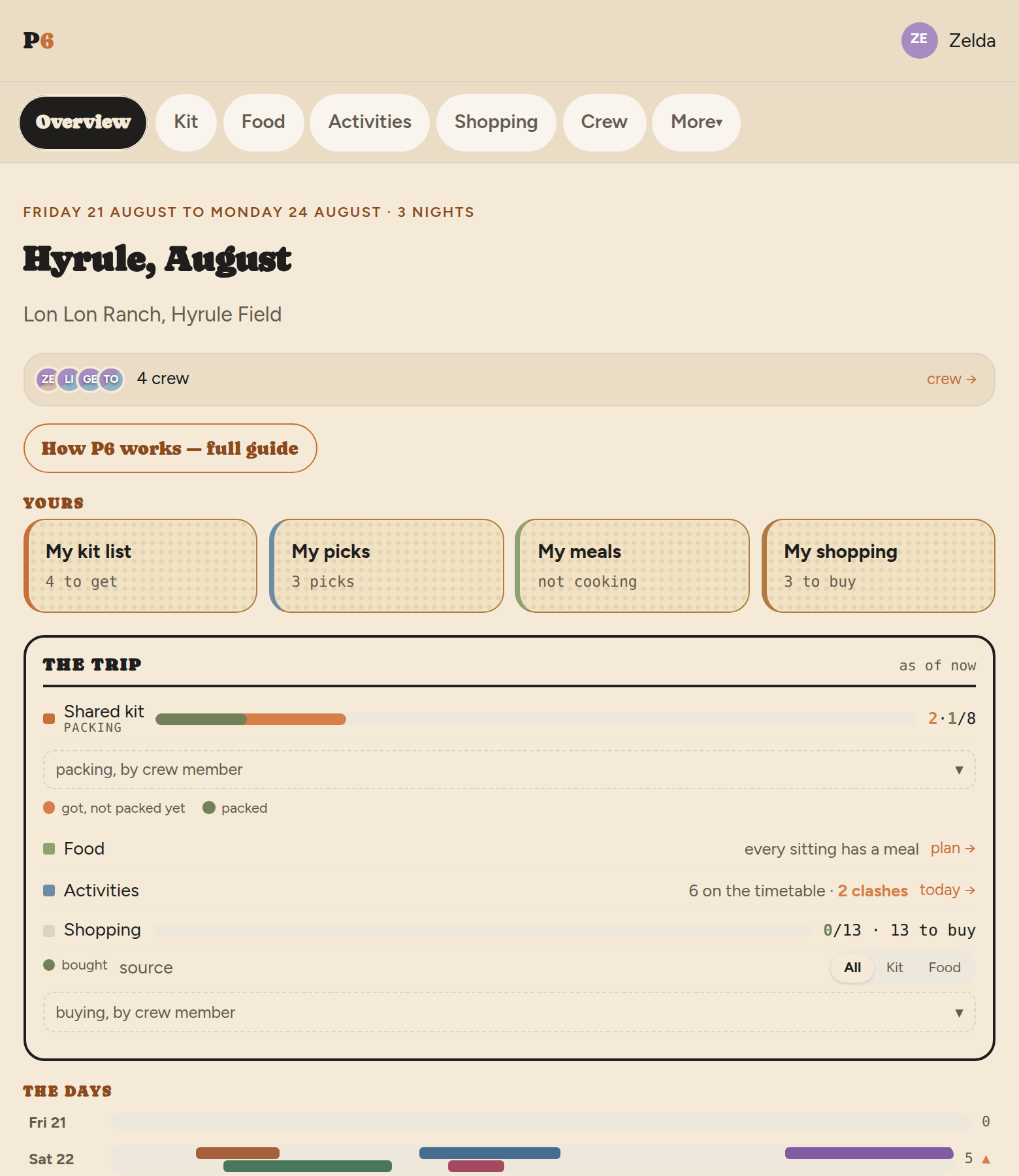
1 · Sections: pick what this trip needs
Some people want a packing list and nothing else. Some want the meal plan too. Some are going to a festival and want a timetable. So a trip carries only the sections it needs, and the rest are not there to scroll past.
- Packing is always on. It is what P6 is.
- Food — the meal plan, ingredients and the food shopping list.
- Activities — a schedule of things happening at a time and a place, and who is going to what.
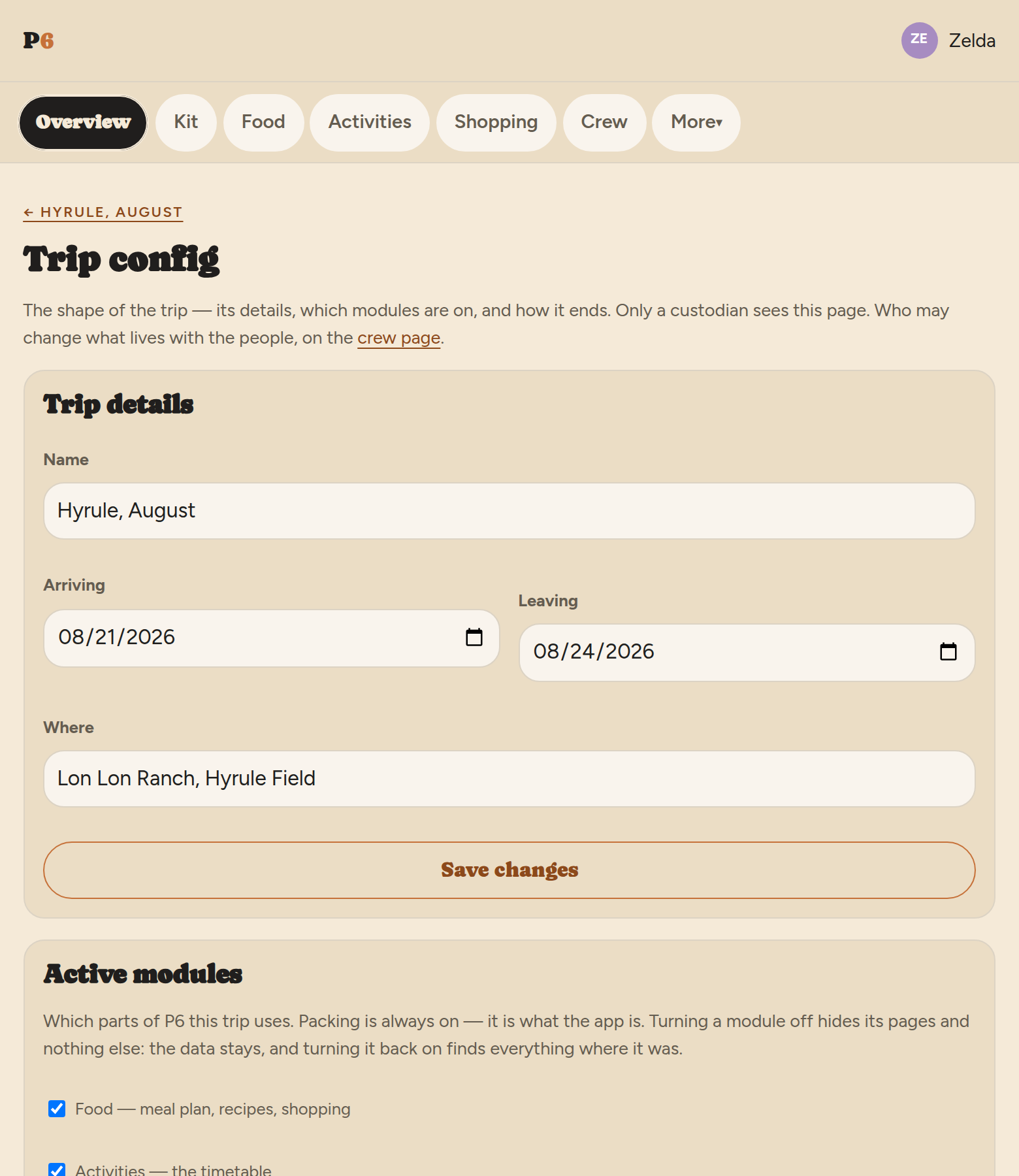
You choose when you make the trip, and whoever holds it can change it later from Trip config — the custodian's page for the shape of the trip: its name and dates, which modules are on, a downloadable copy, and the two ways a trip ends (archive, which is reversible, and delete, which is not). Turning a module off hides it; nothing you put in it is deleted, and turning it back on brings it back as it was. Who may change things is set per person on the crew page, where the people are — section 9 has it.
2 · The two kit lists
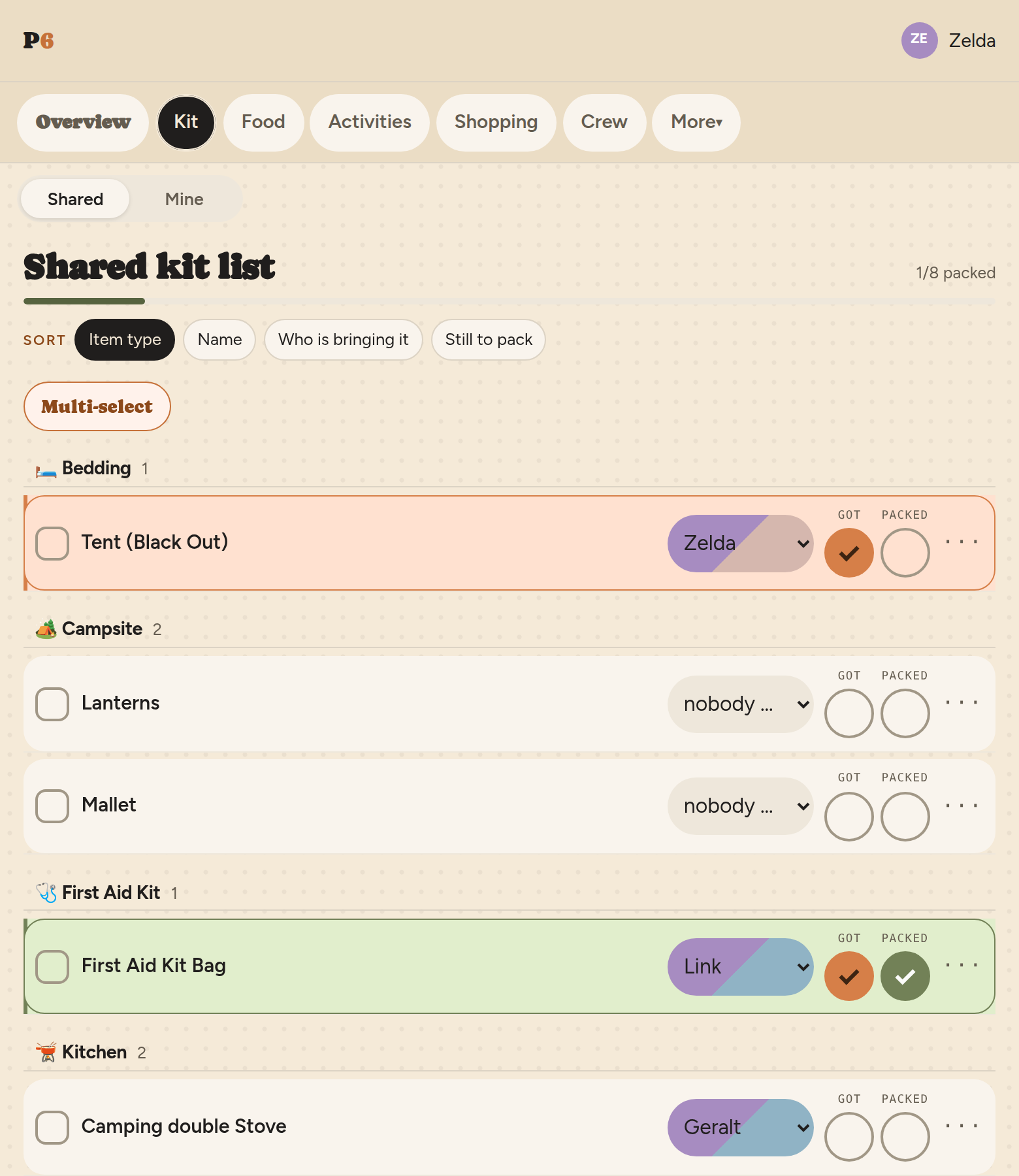
The shared list is what the crew brings between them — one stove, one first aid kit. Anything on it can be assigned to a person, and it then appears on their own page too, so it is never a mystery who is carrying what.
Your list is your own kit. Adding something defaults here, because most things you add are yours. When you add an item, a dropdown lets you choose where it goes — your own list, the shared one, or (if you have permission) straight onto somebody else's. The shared list is the deliberate choice, not the default, because it is the one that affects other people.
The crew can see your list by default — that is what stops four people each packing a kettle. Anything you would rather they did not see has a privacy toggle on the row. See the next section.
3 · Keeping something private
Almost every item on your own list has an eye icon. Tap it and the item becomes hidden from the group — the crew's view of your list simply does not show that row, though the count of what you are bringing still includes it. Tap it again and it is visible once more. The one exception is an item assigned to you from the shared list: it carries no eye at all, because it is still the crew's item on loan to your page, and hiding it would make it look like nobody was bringing the tent poles.
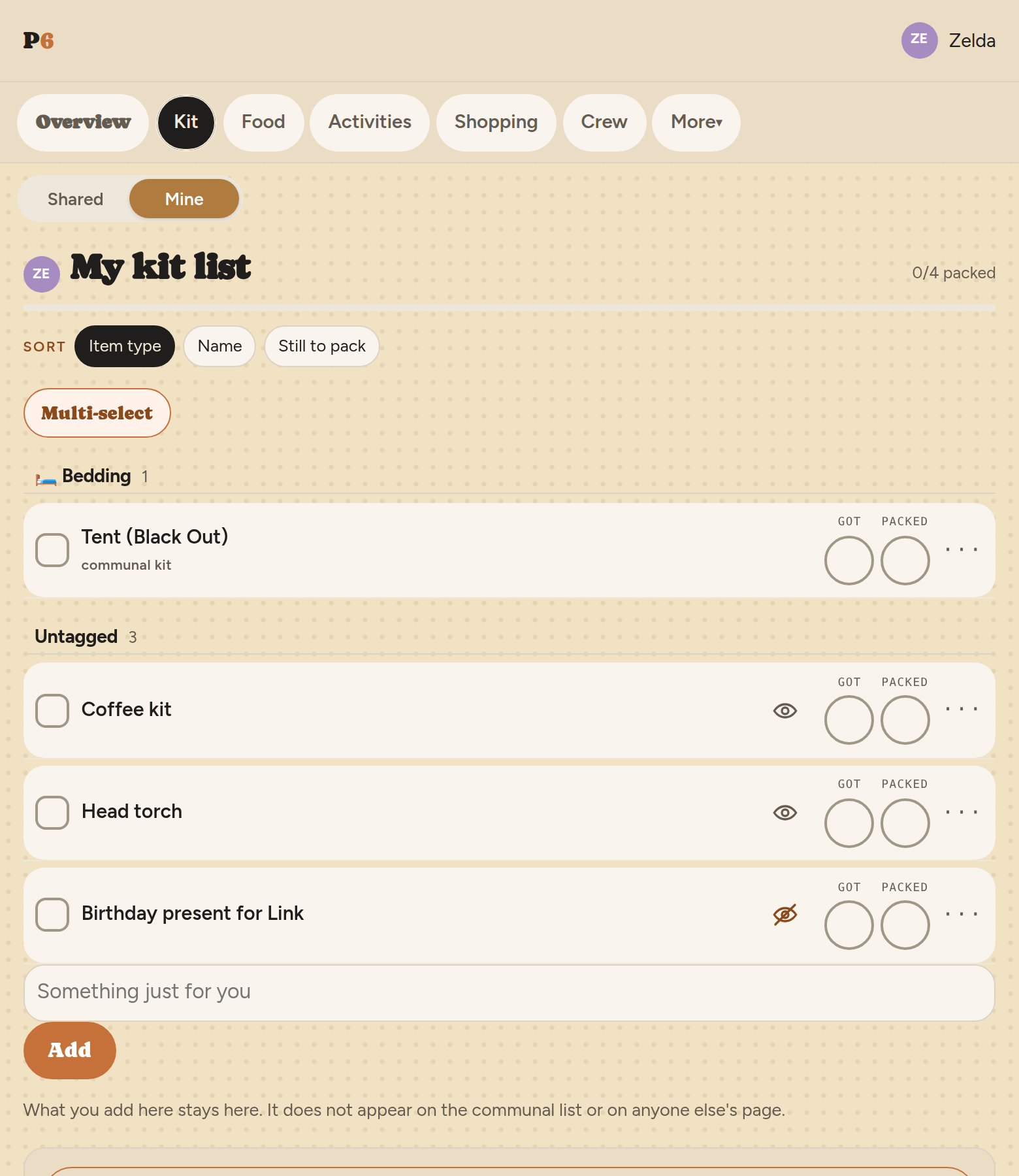
This is for the things nobody else needs to know about — medication, something personal, a gift for someone else on the trip. It is per-item, not a setting for the whole list, so you can keep most of your kit visible and hide only the one thing that needs it.
4 · Building a list with the generator
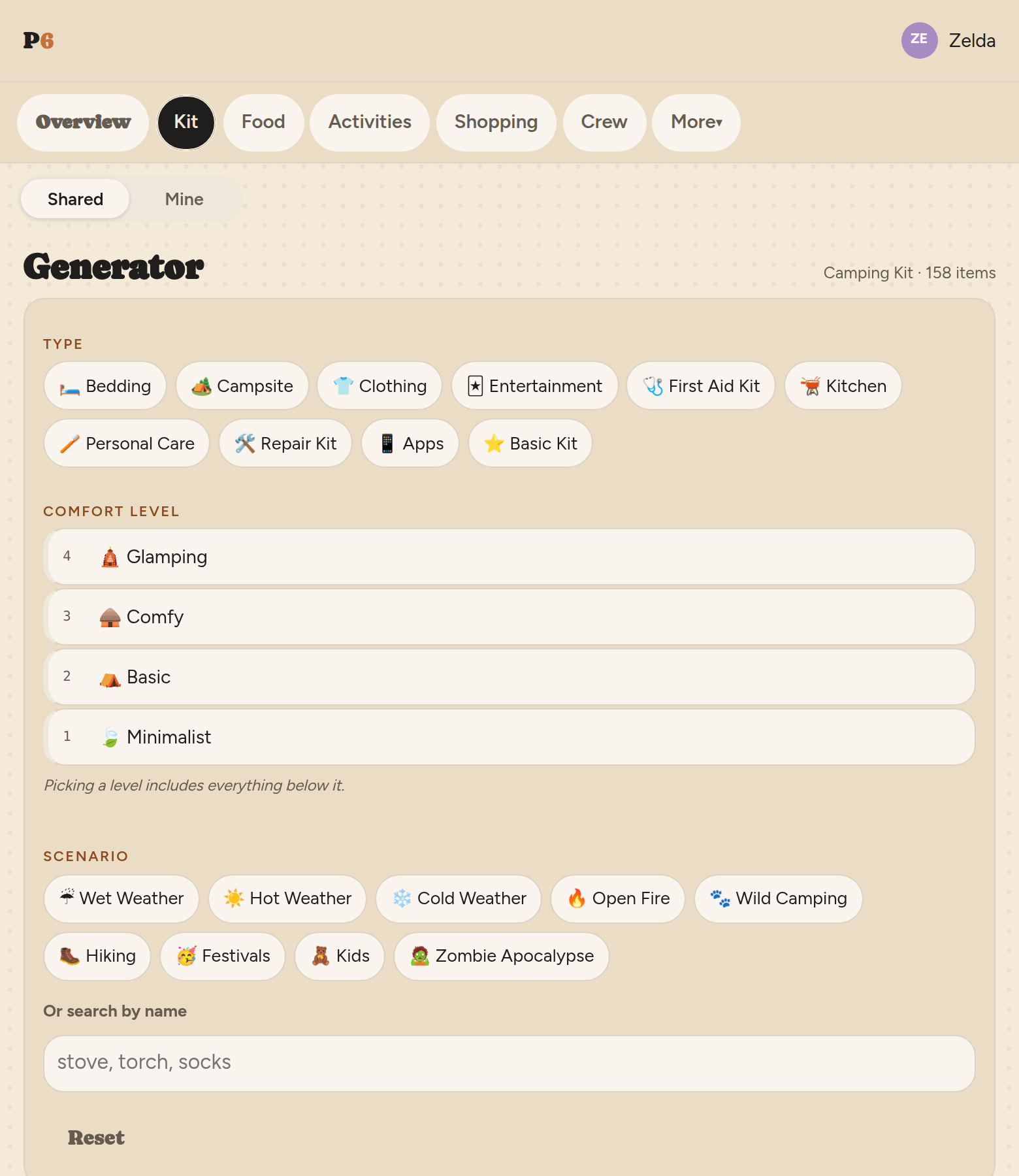
Rather than typing out fifty items by hand, the Generator (in the More menu) filters the trip's kit catalogue by comfort level, scenario and type — wet weather, wild camping, kids, and so on — and shows you a suggested list.
Tick what you want and choose a destination for the whole batch: the shared list, or your own. Nothing is added until you confirm, and nothing stops you generating twice with different filters and merging the results — items already on the list are not duplicated, they are just ticked already if you run the generator again.
5 · Food and the meal plan
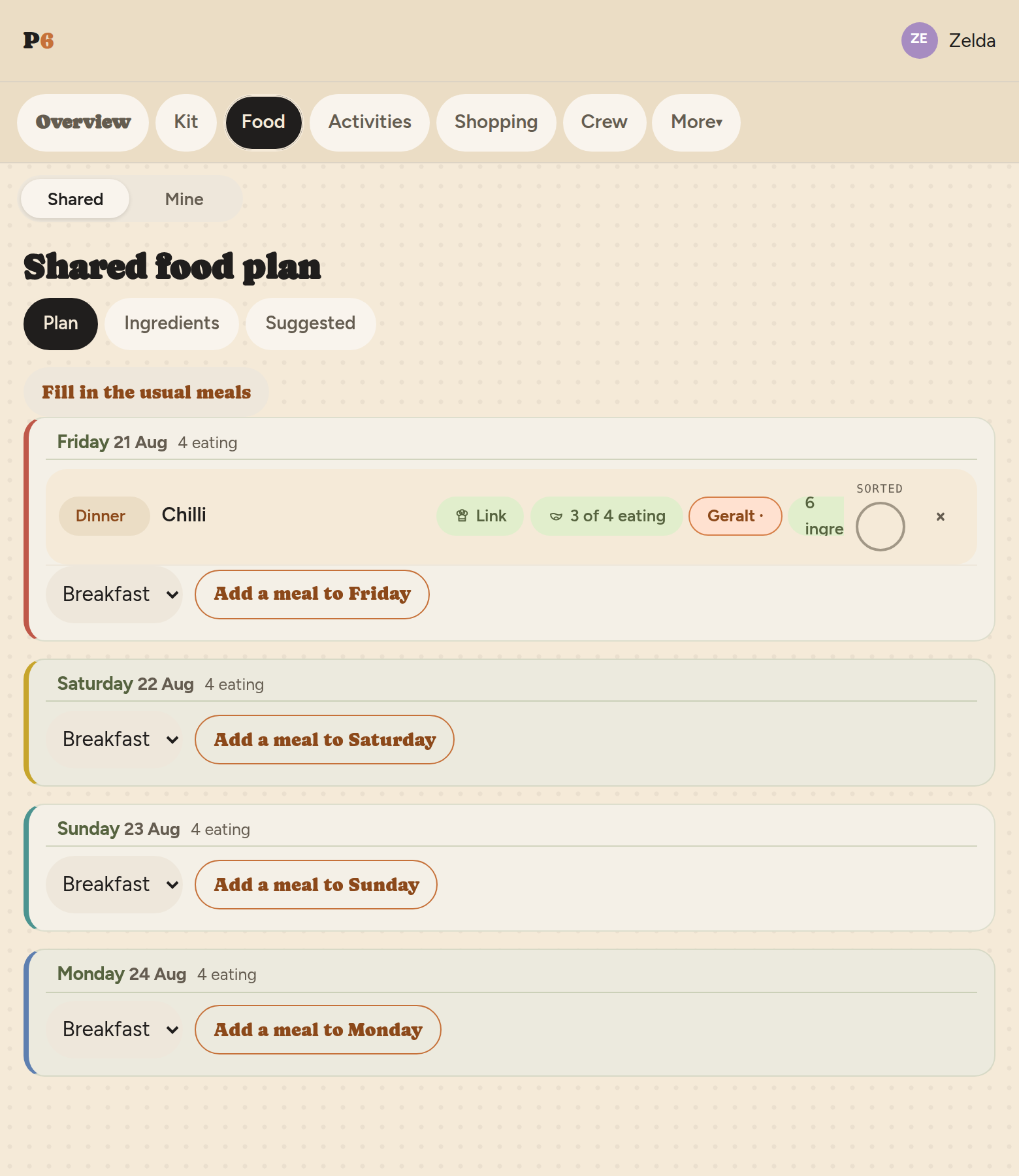
Plan lays out every sitting across the trip's days. Open one, give it a name, and add ingredients as an amount per person — half a can of beans each, not six cans.
P6 multiplies that by however many people are there that day, worked out from everyone's arrival and departure dates. Two more turning up Saturday grows Saturday's dinner and nothing else.
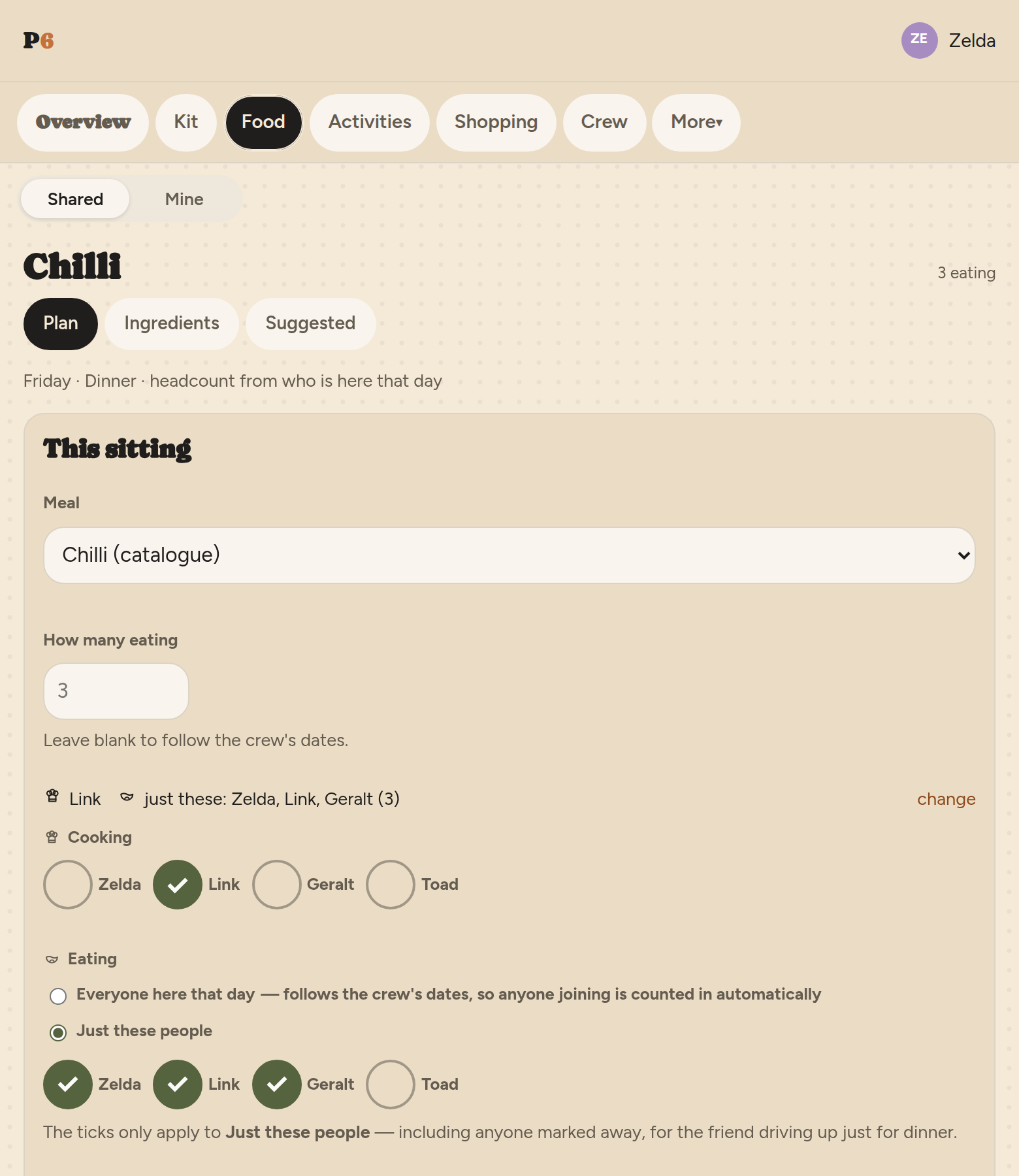
A sitting is either everyone here that day — which keeps following the dates, so somebody joining later is counted in without you touching the plan — or just these people, a list you set for that one sitting. Open the Eating control and pick which; the headcount, the shopping list and everyone's "my meals" page all follow your answer. The ticks only matter on the second one, and they can include somebody marked away that day — for the friend driving up just for dinner.
Dietary requirements travel with the person: set yours once on your Account page — a diet, allergens you avoid, and a free-text line — and every trip's crew page and meal plan shows them. Because the choices use the same vocabulary as the meal catalogue's tags, a sitting whose meal collides with somebody eating it gets a warning chip automatically: contains nuts, and Morrigan avoids nuts.
Ingredients adds every sitting together and shows the working — chilli ×6 @ 0.5, plus 2 spare — so you can see where a number came from. Suggested offers meals from the catalogue, tagged by diet, cooking method, course, allergens and effort, so you can filter for "vegan, no cooking" the same way the kit generator filters by scenario.
6 · The three shopping lists
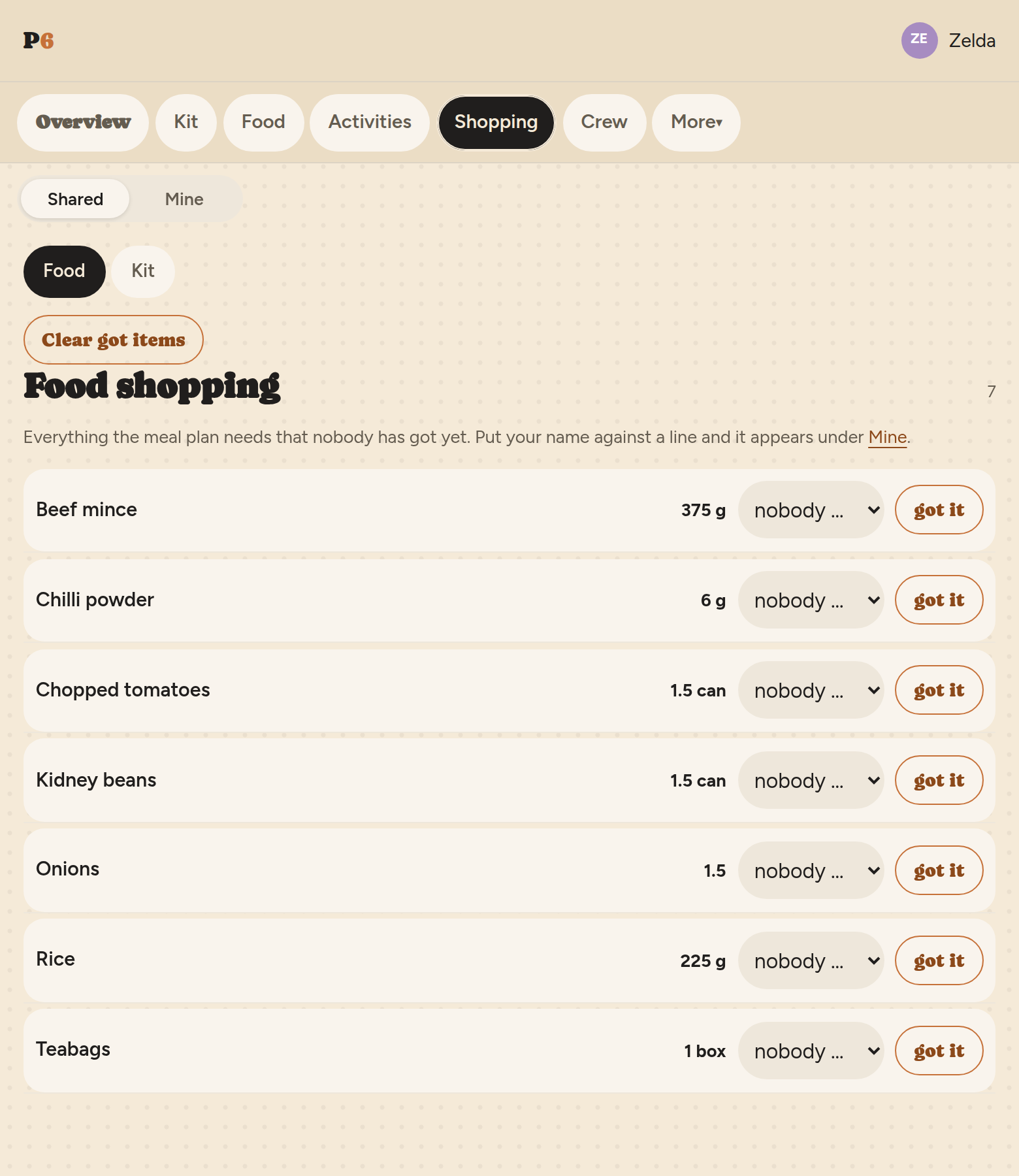
Shopping is one tab holding two crew lists — Food and Kit — and your own page under Mine. Every one of them shows what is not got yet, because a shopping list is what you still have to buy. Pressing got it fades the line where it stands rather than snatching it away, so a mis-tap is visible and undoable; Clear got items is the separate gesture that takes the finished ones off the page.
- Food — every ingredient the meal plan needs, aggregated. Anyone can put their name against a line to say they will buy it.
- Kit — anything on the shared kit list that has not been ticked got, whether or not somebody is assigned to bring it.
- Mine — the food and kit lines you have put your name against, anything you added just for yourself, and anything on your own kit list you have not got yet. That last one matters: a private thing nobody else knows about would otherwise be on no shopping list at all.
Something you add "just for me" — your own shampoo, your own coffee — never appears on the communal lists. It is yours, on your page, and nobody else sees it as a task.
Quantities round up, to one decimal. A plan that works out at 1.42 kg of flour asks for 1.5 kg on the shopping pages — never less than the meals need, and never a long fraction to squint at in an aisle. The same rule covers every unit, the exact number is always underneath (hover a quantity to see it), and the Ingredients tab and each recipe keep the true amount, because the pan wants what the pan wants.
7 · The schedule
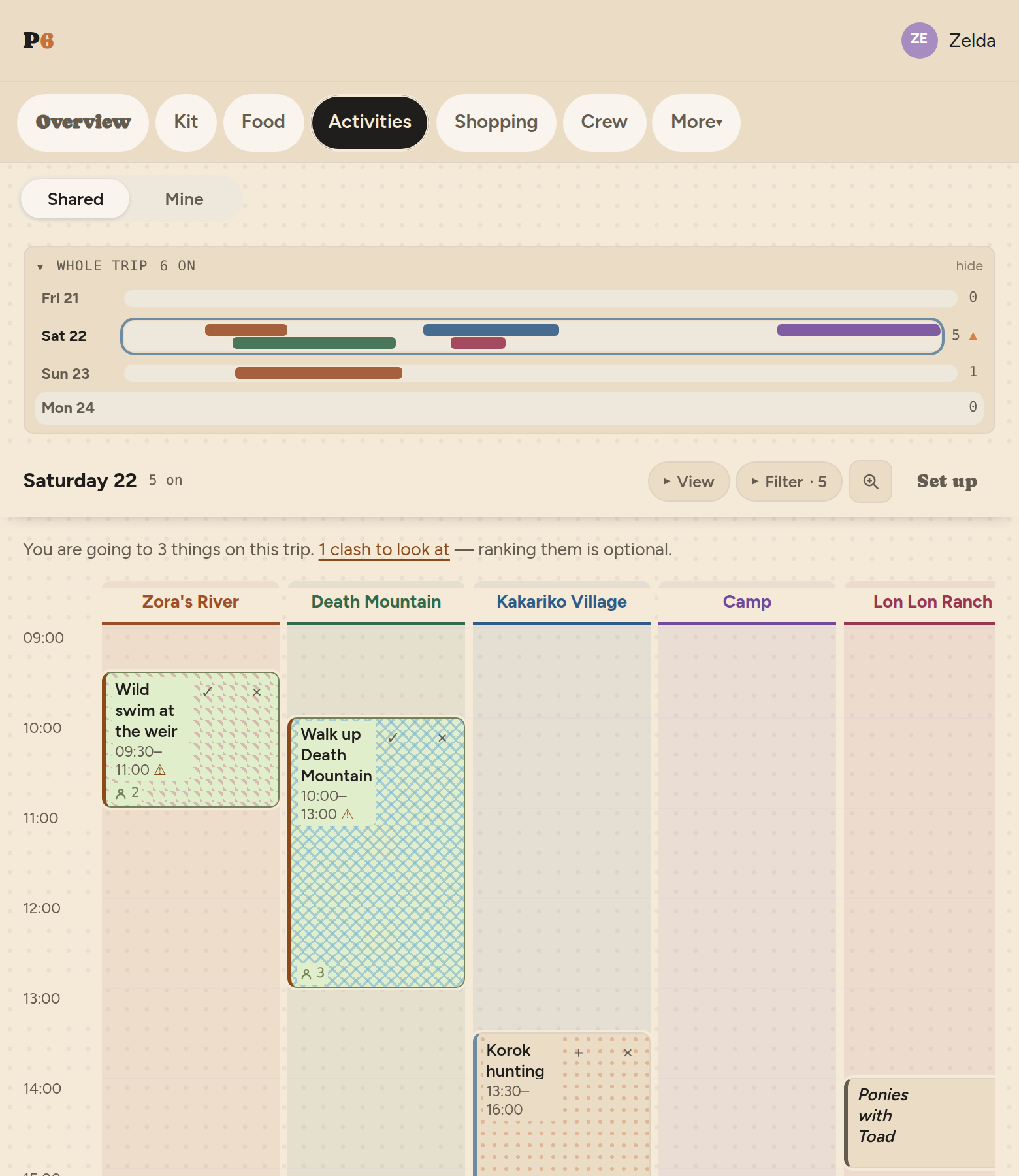
If the trip has the Activities section on, it gets a schedule: everything happening, laid out a day at a time with the time running down and the places running across. Sets at a festival, or a swim and a walk and a fire on a camping weekend — it does not care which.
Adding things
Add them one at a time, or paste a whole timetable as a CSV — name, date, start, end, place, tags. Before it writes anything it shows you what it read: how many rows, any lines it could not understand, and every new place or tag it is about to create, so a typo cannot quietly invent a stage. A set running past midnight needs no special handling — 23:00 to 01:00 just works.
Which day a thing is on
Days start at 06:00 — one time for the whole schedule, and it is the moment one day becomes the next, so anything before it belongs to the night before. That is what puts a 1am set on the evening it belongs to, where everyone who was there would put it, and a 07:35 walk on its own morning rather than the end of yesterday. Things are filed by when they start, never when they end, so a 23:00 to 01:00 set is that evening's rather than the next morning's. A custodian can move the time from Set up, once for the whole trip: where your days turn over is a habit, not something that changes on a Wednesday. There is nothing to set at the other end — a day is drawn as far as the last thing that ends, so an evening finishing at eleven leaves no empty hour beneath it.
Two things at once in one place
A place can run two things at the same time — the yoga strip under the main programme in a lounge — and the column simply splits into as many lanes as it needs.
How much you see at once
View chooses the shape: the day grid, the same day turned Sideways, a Whole trip overview of a row per day, or a plain List. Behind the magnifier are two zooms, because a timetable has two directions — one sizes time, the other sizes how much room each place gets. Squeezing more hours onto the screen and squeezing more places onto it are different wishes, so they are different controls rather than one that has to guess.
The same panel sets how many days the grid shows side by side — one, two, three, five or seven, starting at the day you are on, each column labelled with its day above the place so that "Main Field" says which Main Field. Seven is the cap: past a week the Whole trip view is the honest answer. All of it lives in the address of the page, so a view you have set up is a link you can send.
The trip strip
Above the day sits a foldaway strip with a lane per day and every activity drawn on it in its place's colour — the shape of the week before you open anything. It shows seven days and then scrolls, because a fortnight of rows pushed the schedule itself off the screen and a week is the longest run the eye reads as one shape. Every row says its date — Sat 22 — with the full one on hover, since a bare weekday stops meaning anything the moment a trip is longer than a week. Tap a row to go to that day.
Colours and patterns
A new place is given a colour as it is made, from a palette of twelve, the furthest-apart hues first. Colour used to be an advanced setting nobody opened, which left a twelve-place timetable in twelve shades of the same wash and made you learn the column order instead of the place. A new tag gets both a colour and a pattern, because colour alone fails some readers and two things at one place have to tell themselves apart: the place says where, the pattern says what kind. Both are defaults rather than decisions — Set up still overrides either, and no colour is a real answer there.
8 · Saying where you will be
Tap + on anything and it is marked as something you plan to be at. That is all it is: a statement of intent. It does not decide anything for the group, nothing is voted on, and there is no result.
What it does do is let the crew see each other. Open any activity and it lists who else is going, in their colours. If somebody had a clash there, it says which choice this was for them — a second choice is honest information about who will actually turn up.
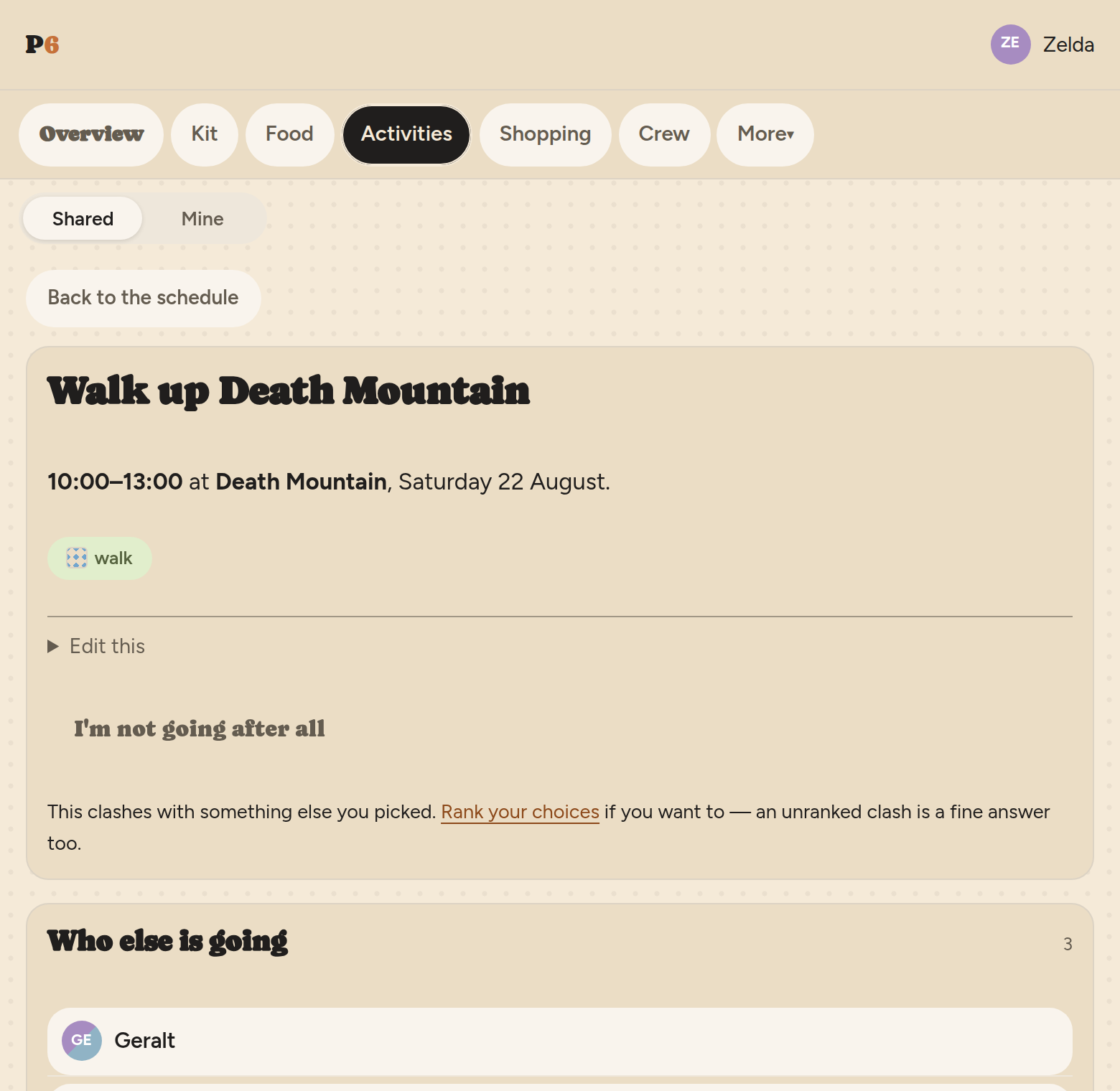
Anyone can say where they will be, including view-only members and children. Editing the timetable is a permission; saying where you will be is not one.
When you pick two things at once
P6 notices and says so. It does not stop you: being in two places at once is a normal thing to have decided, and often you genuinely do not know yet. On My picks a card gathers each clash and offers to put them in order — 1 for first choice — and leaving it blank is a real answer that stays a clash.
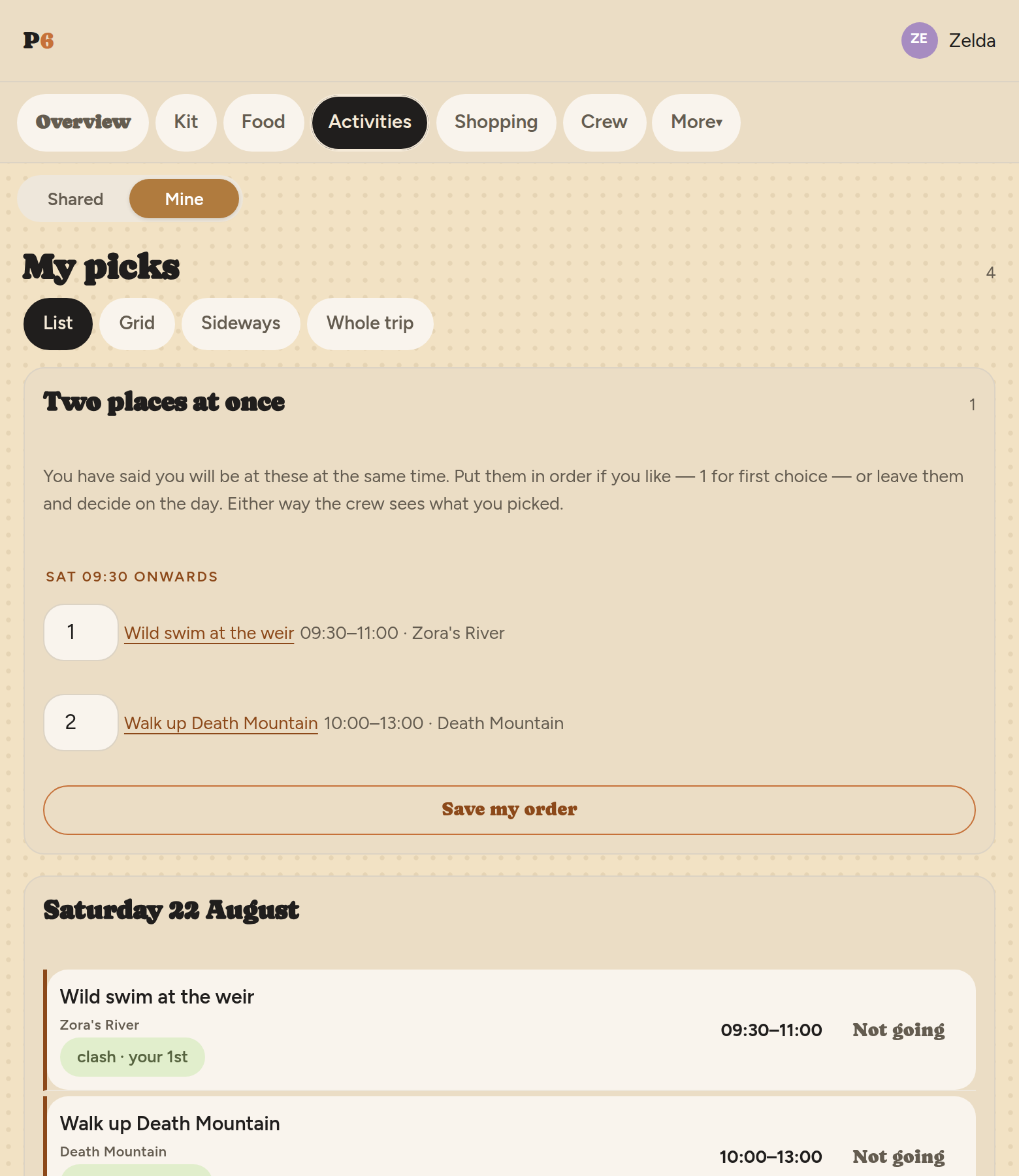
Things you add just for yourself — meeting someone, a swim you do not want to miss — sit on the same timeline and clash with your picks the same way, but nobody else sees them.
My picks has the same views as the shared page — Grid, Sideways and Whole trip, plus this list — drawn over just your picks and your private entries, with the Mine side staying lit. Your own pages also look different on purpose, and the difference is colour rather than texture: the Mine side wears a warm parchment ground scattered with amber dots, while the crew's shared pages keep the plain paper and wear the same scatter in the paper's own ink. The dots are near enough the same on both, so it is the warmth that tells you which side you are on — which is the signal that still works on a phone at arm's length.
Narrowing it down
Filter by tag, by place, or by who is going. Ticking people narrows the schedule to what they picked — the columns close up rather than sitting there empty, so a day of forty things becomes the six your friends are actually going to. Filtering makes a link you can send someone, and it keeps working with no signal once the day has loaded.
9 · Bringing people in
Every trip has a join code. Send it, they type it and their name, and they are in — no account needed. If they want to reach the trip from another device later, they can make an account at any point and keep everything they have already done — same lists, same ticks, nothing lost in the move.
Whoever makes a trip is its custodian, not its owner. They can invite people and set what everyone can do. Nobody can remove a custodian except themselves, and if they leave, the trip passes to whoever has been on it longest.
Who can change what
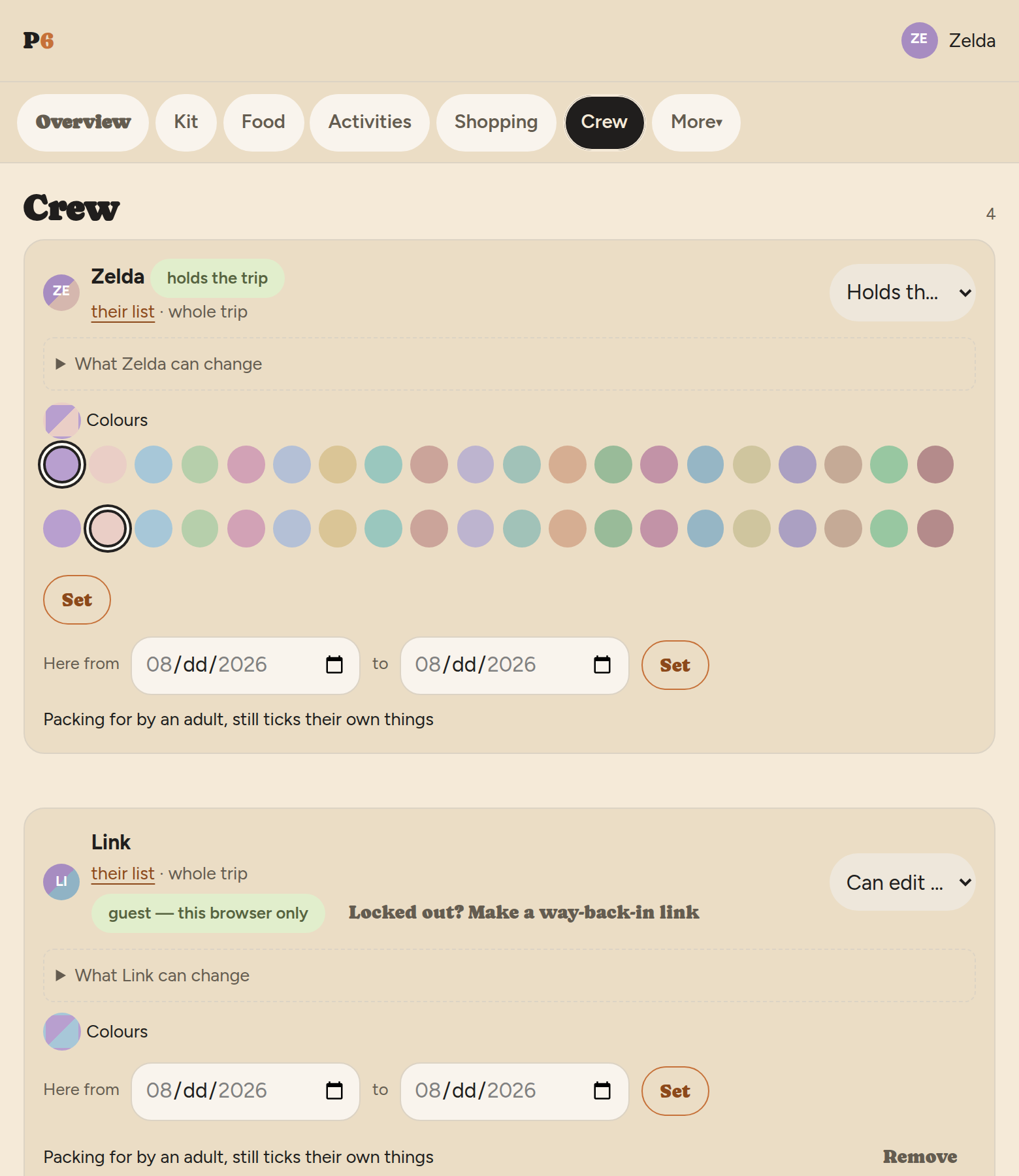
Each card carries a role: Can view and tick, Can edit lists, or Holds the trip. That is what the person may do across the trip as a whole. Only a custodian sees any of this, and a custodian's role is offered only on their own card — nobody can stand another custodian down, so the app does not offer a choice it would then refuse.
Under the role sits a folded row with the person's own name on it — What Zelda can change — folded because most people never depart from their role. Open it and every module the trip has on — Kit, Food, Activities — gets a setting of its own: Crew default, Can view only or Can edit. So somebody who may not touch the packing lists can still be handed the timetable, and an editor can be kept out of the meal plan.
Crew default is the one worth understanding. It is not an absence of an answer: it means this person behaves like everyone else on that module, following their role and whatever the crew is allowed generally. It is also how you put somebody back after a one-off — choose it and the special case is gone, rather than lingering as a right nobody remembers granting. A pair of tick boxes could not say that, which is why this is three choices and not two.
A custodian always keeps every right, and the page says so on their card. That is what holding the trip means, and a setting that could take it away could lock the only person able to fix it out of this page.
The shared catalogue
One switch at the foot of the crew page covers the kit catalogue the trip draws on: whether crew with edit rights may change items in it, or whether that stays with custodians. It is trip-wide rather than per person because the catalogue is — it is shared with every other trip using it, so a fixed typo helps all of them and a mangled entry reaches all of them too. The switch says which way it is set before you press it, and it is the custodian's alone.
Colours
Every member gets a pair of colours, shown as a diagonal split, unique within the crew — that is the pill on every assigned row. Tap Colours on your own card to open the picker and choose your pair; it stays folded away the rest of the time.
Children
A crew member can be marked as a child: an adult packs for them, but they can always tick their own things — the flag is about care, not permission. A child can have more than one responsible adult — tick both parents — and an adult can only leave the trip once every child they answer for still has someone else. Nobody's child is ever left unaccounted for by an algorithm.
Locked out?
A guest identity lives in the browser it was made in. If somebody clears their cookies or picks up a different phone, the custodian can make them a one-use way-back-in link from the crew page — opening it signs them straight back into their own name, lists and all. It lasts a week, works once, and only a custodian can see it, because opening it makes you that person.
Two things it will not do. It is never offered for someone with a password — they can just sign in, and their password stays the only key. And it is refused if that person is on a trip you do not hold: signing in is signing in everywhere, so handing back an identity that reaches further than your own trip is not yours to do. The app says which trip stopped it.
Part-timers and placeholders
Each person can carry arrival and departure dates — meals scale to who is actually there each day. And you can add someone before they have ever seen the app: they appear as a placeholder with a personal claim link, and when they open it, everything already assigned to them is theirs.
10 · The kit catalogue
The catalogue is the master list a trip's kit is generated from. Each row shows its type; the rest of an item's tags — comfort level, scenario — are on the item's own page, kept off the list view so 140 items does not read as a wall of chips.
Sort it by name or by any of its dimensions. An Edit button sits on each row for anyone with permission to change the catalogue, so fixing a typo does not need two extra taps to get there. Whether the crew has that permission is the custodian's call, made with the shared catalogue switch on the crew page — one switch for the whole crew rather than a per-person one, because the catalogue is shared with every other trip using it. Section 9 has the detail.
The catalogue lives under More — the last item on the trip bar, on a phone and on a desktop alike.
11 · Signing in, and getting back in
You do not need an account. Give a name, use a join code, and everything works — that is still the shortest path and it is not going away. What an account adds is coming back: the same lists from your phone, your laptop, and a borrowed computer.
A username and an email address. The username is what you type to sign in; your crew name is what everyone sees on the trip. They are deliberately different things — the sign-in box takes either the username or the address, so you do not have to remember which one you used.
Registering keeps everything you already have. If you have been using P6 as a guest, adding a password attaches it to the profile you are already in. Nothing moves, nothing is copied, and no trip is left behind.
Confirm your address when the email arrives. Until you do, the address is only a claim — it is not attached to your account and a password reset cannot use it. This is on purpose: it means nobody can lock you out of your own address by typing it into the sign-up form first.
Your recovery code is shown once. Sixteen characters, on their own page, right after you register. Write it down. It is the way back in when the password is gone, and on a P6 running at home with no mail server it is the only way back in — nobody, including whoever runs the instance, can read it back to you afterwards.
No code? Get one. Accounts made before this release never had one. Your account page will give you a code — it asks for your current password first, because the code is a password. Doing that replaces any code you already had.
Forgotten it all? The sign-in page has a "forgotten your password" link. It answers the same way whatever you type, so nobody can use it to find out who has an account here, and the link it sends lands in your inbox within a minute or two. If nothing arrives, check the spelling — and then use the recovery code.
Changing your address from your account page does not take effect until you open the link sent to the new one. The old address keeps working in the meantime, so a half-finished change cannot lock you out.
Your dietary requirements live here too. Set them once — guest or account, it works either way — and every trip you are on shows them where meals get planned. Section 5 has the detail.
12 · Rules worth knowing
Got and packed are in order. Ticking packed means you have it, so it ticks got as well. Unticking got clears both, because a thing you do not have cannot be in the bag.
Nothing is deleted quietly. Long-press an item to select several at once — a bar appears at the bottom with Got, Packed and Delete for everything selected. Deleting several things asks first. A duplicate name gets numbered rather than merged — two torches is two torches, not a mistake.
Nothing is decided by vote. Saying you will be at something on the schedule is you telling the crew where you will be, not the group choosing. There is no result, no winner, and no "most popular" list — the counts are there so somebody who knows none of the names can read the room.
A finished trip is archived, not deleted. Archiving (from Trip config) takes the trip off everyone's list and onto your Archived trips page with every row intact, and a banner on the trip itself says so. Deleting is the one action in P6 with no undo — it asks you to type the trip's name, and the download button sits directly above it for a reason.
Two ways back into an account, and one of them is on paper. A reset link by email, and the recovery code you were shown when you registered. Section 11 has the detail. If you never wrote the code down and never confirmed an address, a custodian re-inviting you to each trip is still the last resort.